UI to Code
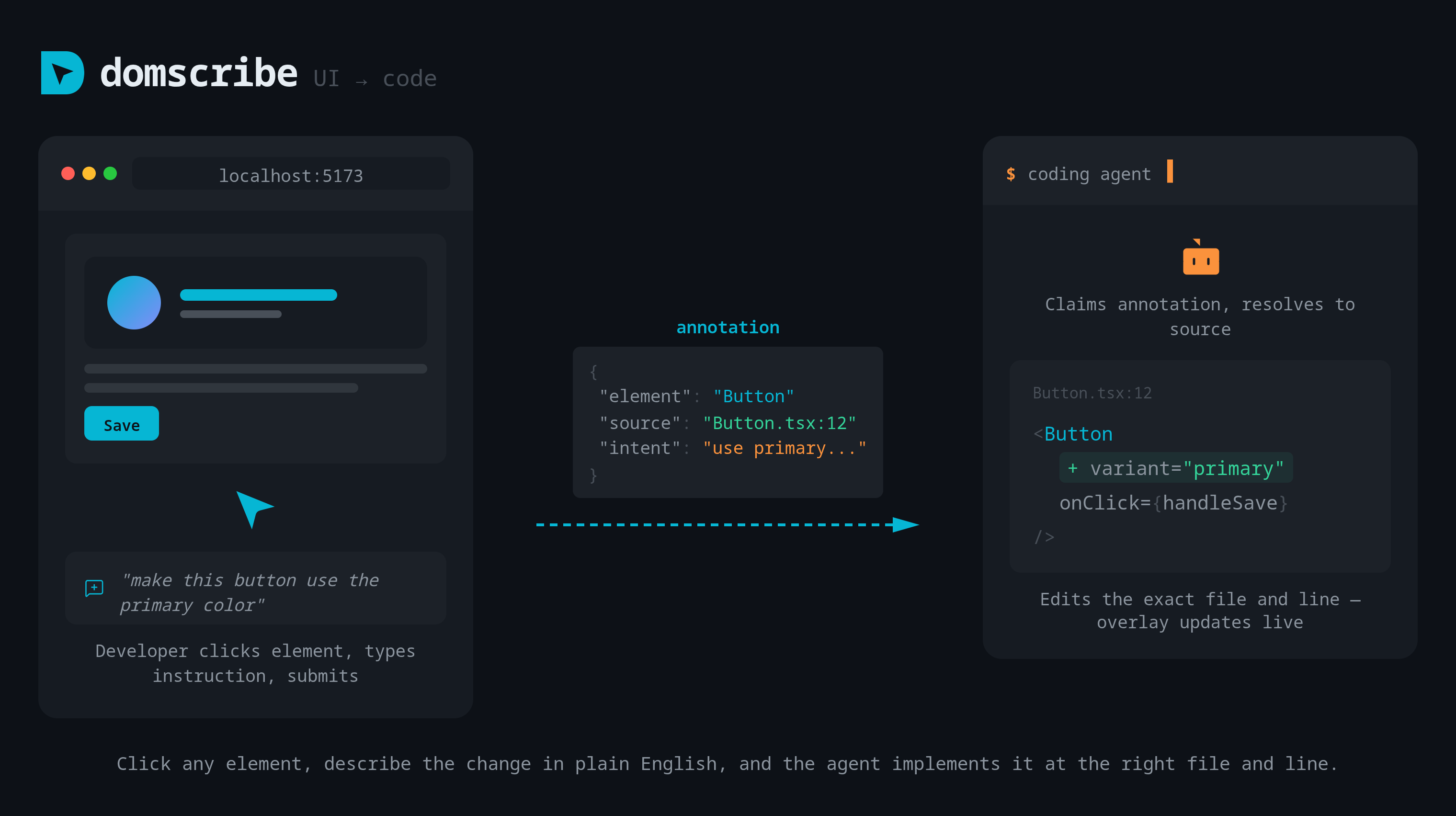
UI to Code lets you click any element in the browser, describe a change in plain English, and have your coding agent implement it. Domscribe captures the element's source location, runtime context, and your instruction, then hands it to the agent via MCP.
How It Works
- Pick an element. Open the Domscribe overlay in the browser and activate the element picker (capturing mode). Click any element on the page.
- Describe the change. Type a plain-English instruction in the overlay panel. For example: "Make this button blue and add a loading spinner."
- Submit. Domscribe captures the element's source location (file, line, column, component name), its live runtime context (props, state, DOM snapshot), and your instruction. This is saved as an annotation in
.domscribe/annotations/. - Agent claims it. Your coding agent calls
domscribe.annotation.processvia MCP, which atomically claims the next queued annotation. This prevents concurrent agent conflicts. - Agent implements. Using the source location, the agent navigates to the exact file and line. Using the runtime context, it understands the current state of the component. Using your instruction, it knows what to change.
- Real-time feedback. The agent calls
domscribe.annotation.respondto attach its response. The relay pushes this to the browser overlay via WebSocket, so you see the agent's progress in real time.
Annotation Lifecycle
Each annotation moves through a defined set of statuses:
| Status | Description |
|---|---|
QUEUED | Created by the overlay, waiting for an agent to claim it |
PROCESSING | An agent has claimed it via domscribe.annotation.process |
PROCESSED | The agent has finished and attached a response via domscribe.annotation.respond |
ARCHIVED | The annotation has been archived (manually or automatically) |
FAILED | The agent encountered an error while processing |
Annotations are stored as JSON files in status-specific subdirectories under .domscribe/annotations/ (e.g., .domscribe/annotations/queued/, .domscribe/annotations/processing/). When an annotation's status changes, the file is moved to the corresponding directory.
MCP Tools for Annotations
| Tool | Description |
|---|---|
domscribe.annotation.process | Atomically claim the next queued annotation (prevents concurrent conflicts) |
domscribe.annotation.respond | Attach agent response and transition to PROCESSED |
domscribe.annotation.updateStatus | Manually transition annotation status |
domscribe.annotation.get | Retrieve an annotation by ID |
domscribe.annotation.list | List annotations with status/filter options |
domscribe.annotation.search | Full-text search across annotation content |
Tips
- You can submit multiple annotations before the agent starts processing. They are queued and processed in order.
- The overlay updates in real time as the agent works through annotations, so you can watch progress without switching windows.
- If an annotation fails, the agent can retry by updating its status back to
QUEUEDusingdomscribe.annotation.updateStatus.
Related
- Code to UI -- the reverse direction: agent queries source to see live UI
- Overlay and Picker -- the in-browser UI for selecting elements and submitting annotations
- Real-time Feedback -- how WebSocket events deliver live updates to the overlay